Configuring BLF on Generic SIP
Version 4 of OpenScape Business (GA in July 2026) included SIP OPTIONS. This was put in place for Mitel 69xx series phones but works with any SIP deskphone that supports SIP OPTIONS. Message waiting was also tested on the Yealink phones used for the documentation.
Before attempting to configure a device, check that the following prerequisites are met.
- Software revision is at least V4
- V3 mainboard for "X" systems
- SLES 15 SP7 for OpenScape Business "S"
Example Configuration shown on a Yealink...
For best and predictable results we recommend that the device is NOT using STUN and is on a local network or VPN connection.
First, let's configure a line key(s) as BLF. On most Yealink phones this is found in the web GUI : DSS Key > Line Key
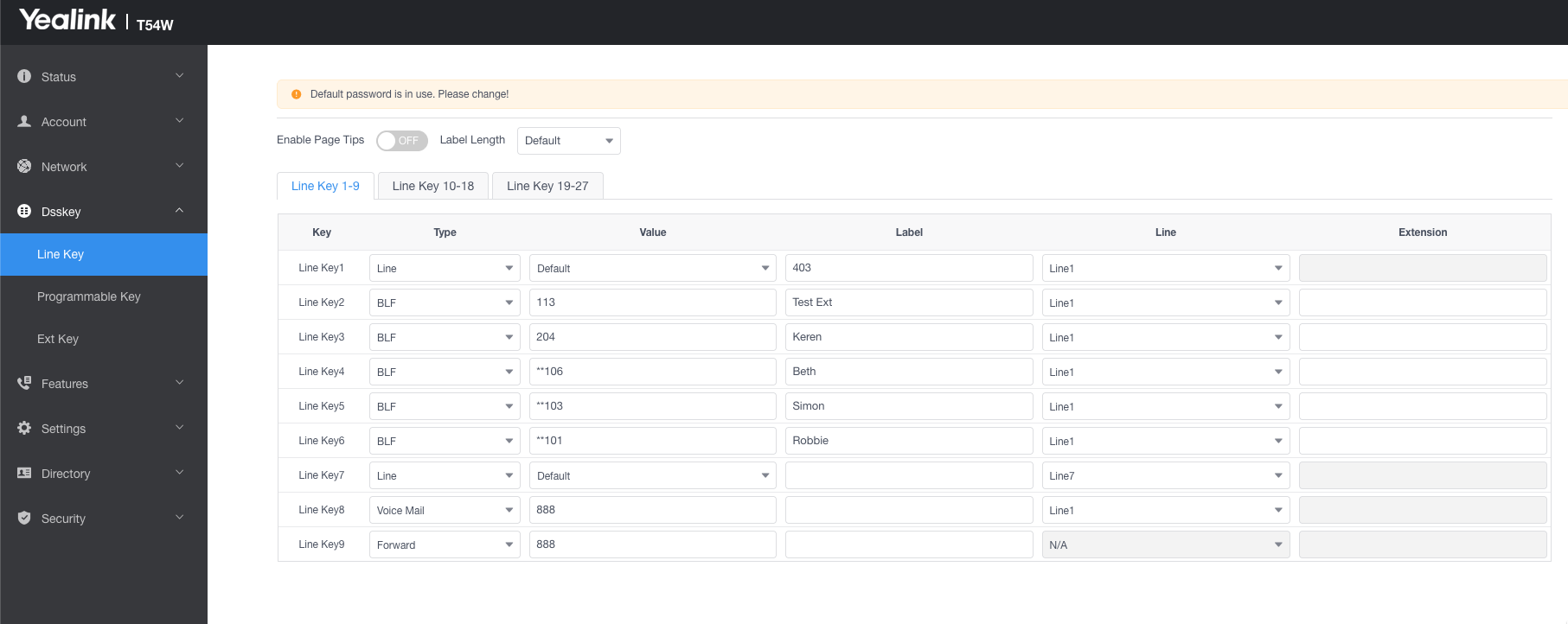
- Type = BLF
- Value = Extension to be monitored (Note, for a MULAP you can enter either of the station numbers but NOT the Mulap group number)
- Label = The key label, for instance the user name
- Line = Typically "line 1" - the account that is registered to the OpenScape Business
- Extension = Can be left blank. You can also enter the direct call pickup code in here, for instance *59
Setting Directed Call Pickup code
You can set this on each BLF as above, but in practice it is easier to set globally.
Navigate to : Features > Pick up & Park
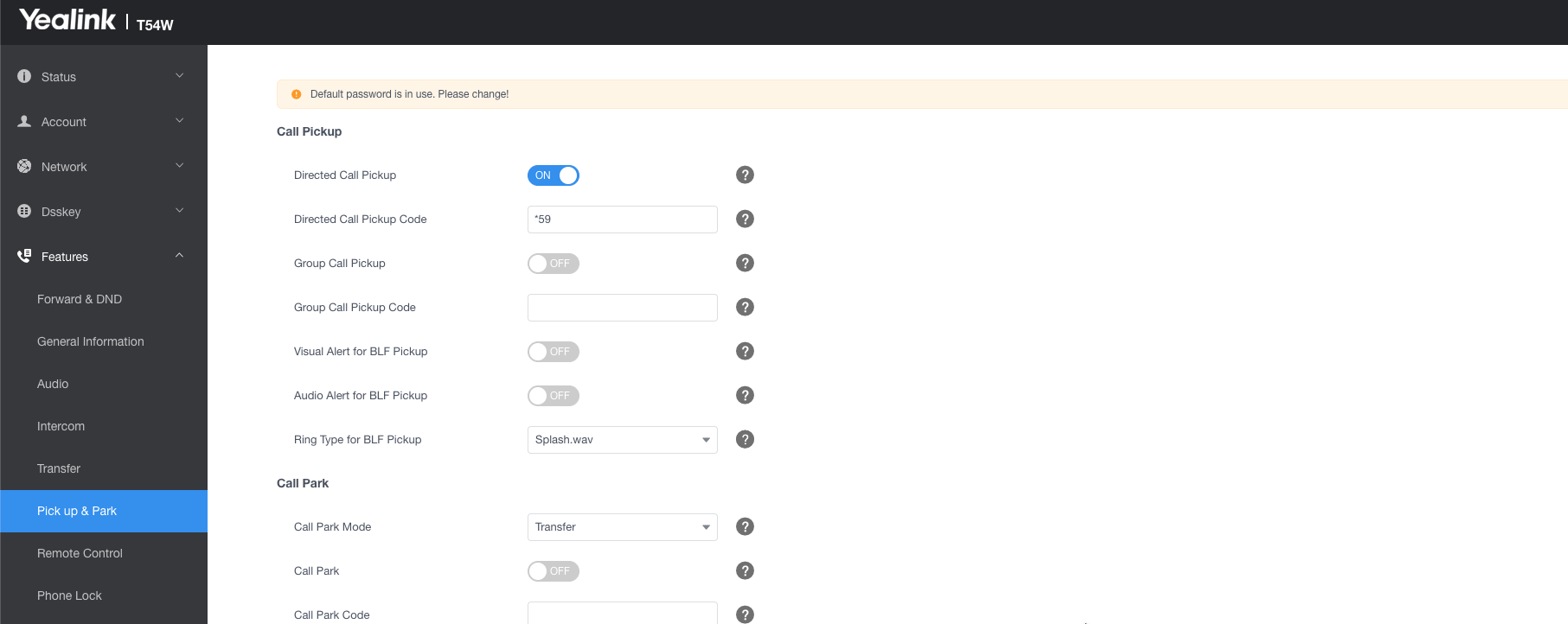
- Turn on Directed Call Pickup
- Add the feature code, by default on OpenScape Business it is *59
Click on Confirm to apply
Voicemail message waiting Indication
You can activate message waiting indication on the Yealink device easily.
Navigate to Account > Advanced
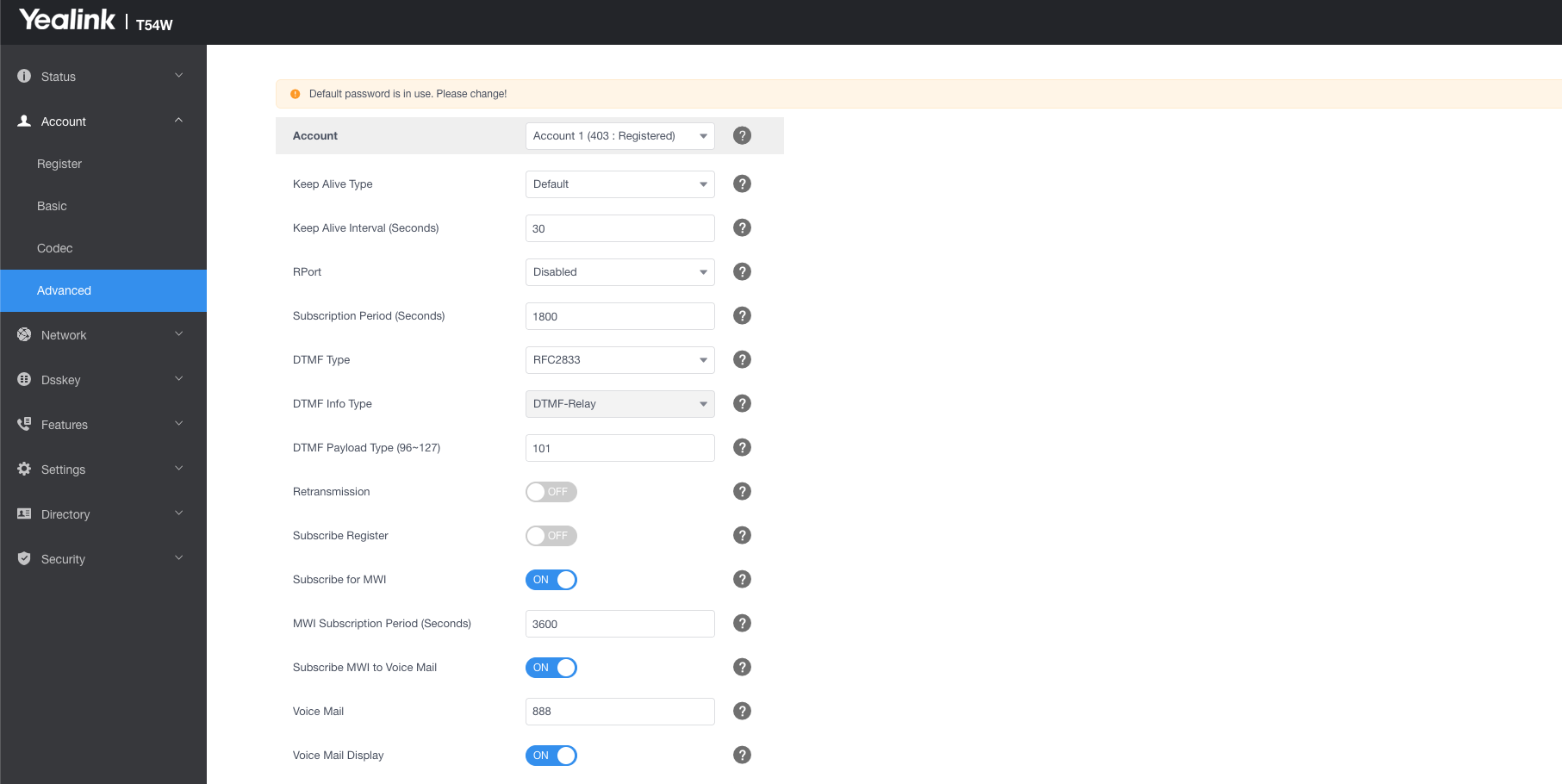
- Turn on Subscribe for MWI
- Turn on Subscribe MWI to voicemail
- Enter the voicemail box number - Example 888
- Turn On Voice Mail Display
Click Confirm to apply