Backing Up in the Core
Viegli have a backup folder on our NAS drive. This can be used by any system in our core.
First, it is advised to map the network share to your PC.
- Open File explorer and enter \\10.1.80.14 in the search bar
- Username = pbx-backup, password = pbx-backup tick the remember option
- Right click on PBX Backups and "Map network drive"
- Select a drive letter and reconnect at login
You will end up with a mapped drive like below:
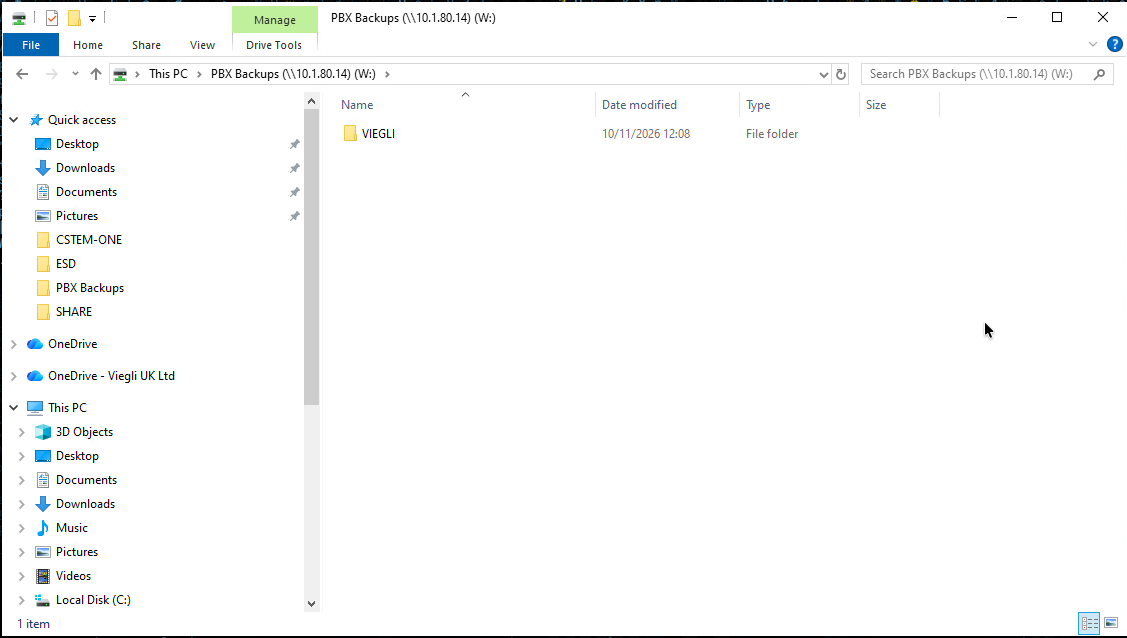
Using the shared folder in OSBiz
First, in the mapped drive right click and create a new folder for the PBX that you're backing up, in the example above I created "VIEGLI"
In OSBiz WBM navigate to Data Backup > Set up Device
Click on Add
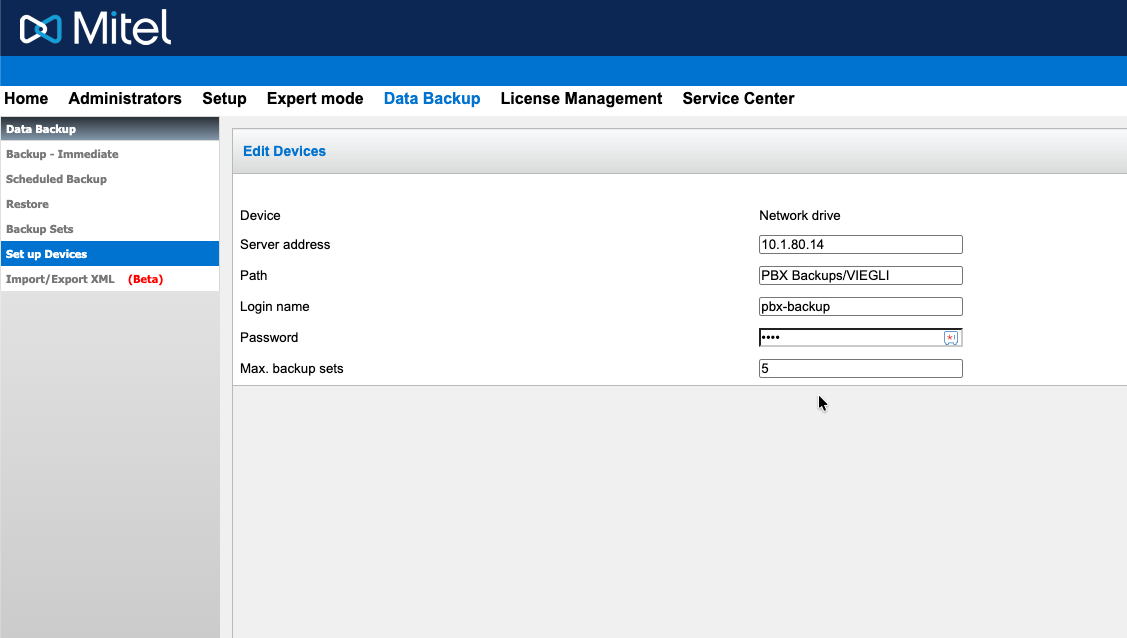
- Server address : 10.1.80.14
- Path : PBX Backups/[folder name]
- Login name : pbx-backup
- Password: pbx-backup
- Max backup sets : 5 or 10
[folder name] is the name you gave the folder for the customer backup.
Testing the connection.
The quickest way to test if the share is available once saved is to navigate to Data Backup > Backup Sets and click on the network drive you just created. If you do not get a "mount failed" error then the drive is good to go.
Then do an immediate backup to the network drive.
Scheduled backups can be used with this network share.