How to set up Initial Setup wizard
5.6.1 How to Start the Initial Installation Wizard
1) In the navigation bar, click on Setup.
2) Click on Edit to start the Initial Installation wizard.
Once in the setup wizard
1) Set the display logo and the product name. Specify a display text to be displayed on the display of the system phones. Additionally, you can also select the product name.
2) Select the country code and the language to be used for event logs. For country initialization to work correctly, you must select the country in which the communication system is operated. In addition, you can select the language in which the event logs (system event logs, errors logs, etc.) are to be stored.
3) Make sure to select the actual network interface, instead of the local-host, for the IP address of the system. Strictly if required, activate another LAN port as a WAN interface. If OpenScape Business S (or the Linux server) has a second LAN port, you can use this as a WAN interface for Internet access and Internet telephony via an ITSP. The first LAN port is used as usual as a LAN interface for the internal phones and PCs
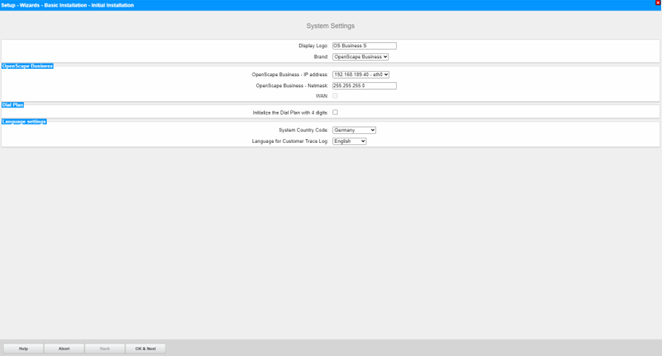
Click [Okay & Next]
5.6.3 UC Solution
In the Change application selection window, select the UC solution to be used.
You have the following options:
• Package with UC Smart
The UC solution UC Smart is integrated in OpenScape Business S.
• Package with UC Suite
The UC solution UC Suite is integrated in OpenScape Business S
1) If you use the UC solution UC Smart, click Package with UC Smart.
2) If you are using the UC solution UC Suite, click on Package with UC Suite.
3) Click on OK & Next.
4) The Initial installation wizard is closed. Click on Finish.
The system will restart as it downloads the UC configuration