Unify Phone
2.1 Request the Unify Phone Tenant
To connect OpenScape Business with Unify Phone you need an active Unify Phone Tenant.
Register your company for Unify Phone via the Unify Phone administration app: https://phoneapp.unify.com/tenant/.
Please enter the requested data.
At the end sign up in Unify Phone and login as administrator.
Then, an API key is generated to be entered in your OpenScape Business system.
2.2 API key
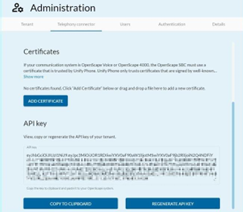
The API key of your tenant can be accessed and regenerated via the API key section within the Telephony connector tab. Click Copy to keyboard.
2.3 Telephony Connector
Under the section Telephony status you can view the name, the type and the status of the telephony connector. The status of the telephony connector should be Available.

2.4 Unify Phone for OpenScape
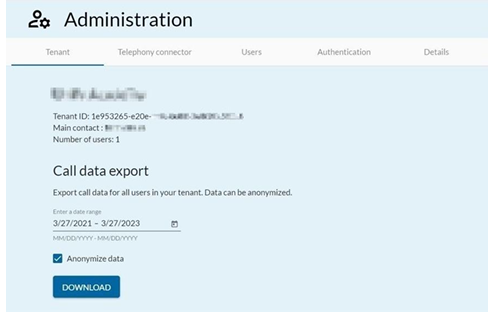
The access to the tenant is available via the administrator portal
3.2 Unify Phone Connectivity wizard
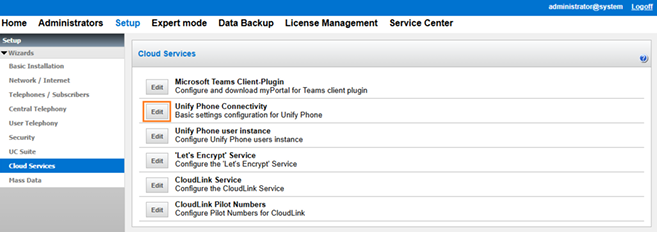
Go to Cloud Services – Unify Phone Connectivity Click [Edit].
Actions:
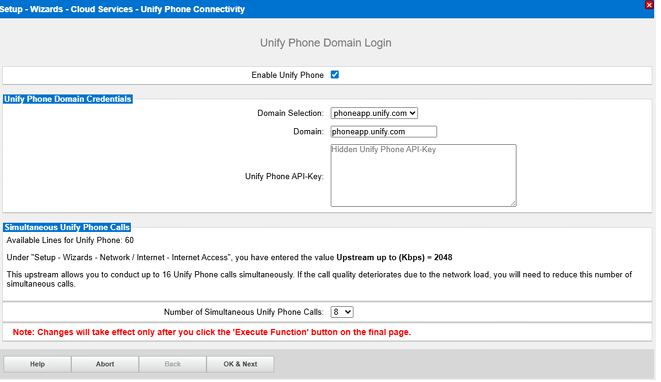
- Check “Enable Unify Phone”
- select Domain phoneapp.unify.com
- insert the API Key via copy and paste (get the API Key from Unify Phone tenant Administrator)
- select Number of simultaneous circuit calls.
- The “upstream up to (Kbps)” value defines the overall bandwidth, which can be used for voice calls to the internet. This includes Unify Phone calls as well as ITSP and/or Device@Home calls.
Click [OK & Next].
On the next page select the numbering scheme of the Unify Phone user call number:
• international numbering (default): E.164 format
• internal numbering: short format
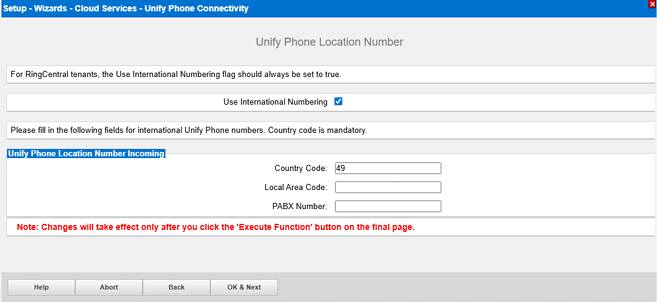
Click [OK & Next].
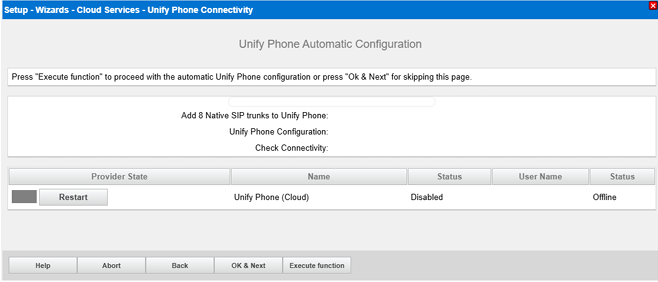
Click [Execute Function].
The wizard automatically configures the trunks, the according route and establishes the connection to Unify Phone
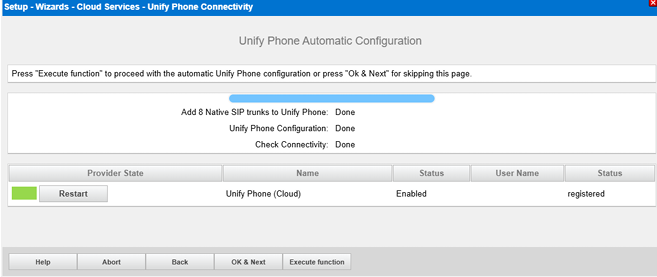
Click [OK & Next].
Since OpenScape Business V3R4: support of secure Media (DTLS-SRTP) and direct Media between the Unify Phone Client and the OpenScape Business is available by default in new deployments. Existing installations must be updated to new functionality via Expert Mode by activating “DTLS-SRTP” manually and restart the trunk.
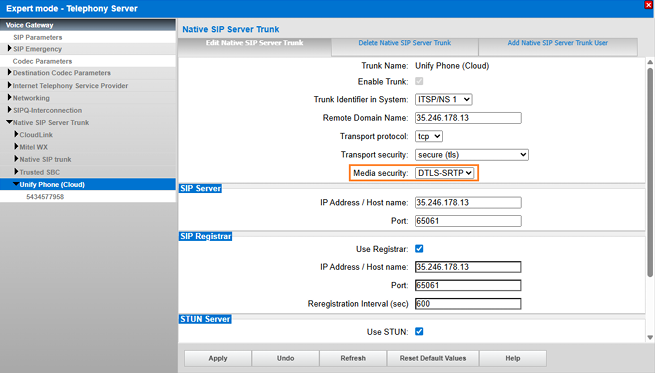
Close the window and restart the ITSP.
3.3 Unify Phone User instance wizard
Go to Cloud Services – Unify Phone user instance
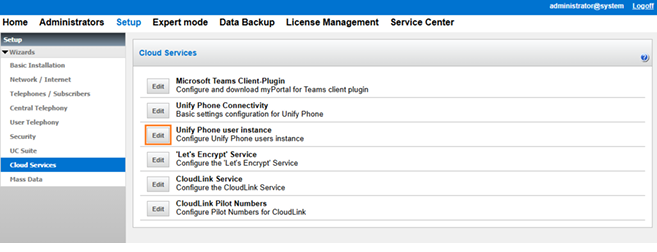
Click [Edit].
Action: Create new Unify Phone User
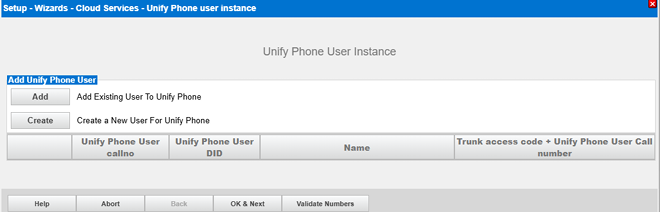
Click [Create].
Add the Unify user extension number
The Users DDI (If they have one)
Add the First Name
Add the Last Name
Add the email address
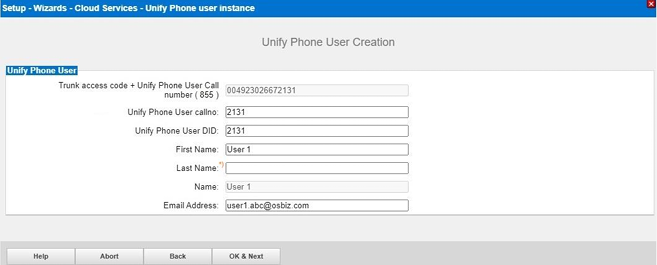
Click [OK & Next].
3.4 Twinning with Desk Phone
For the twinning with Desk Phone a Team configuration (MULAP) consisting out of a Unify Phone user and a Desk Phone is required within OpenScape Business. When integrating the Unify Phone user into a Team, please note:
• Only one IP or TDM desk phone can be included in the Team configuration with the Unify Phone User. The routing function in Unify Phone is used to determine which end device should be used to signal an incoming call.
• The desk phone in the team with Unify Phone can still be controlled by external applications via TAPI, WSI or CSTA.
• Cordless subscribers are not approved in connection with Unify Phone.
• Direct calls to a Team (MULAP) member are not possible for the Unify Phone configuration.
Go to User Telephony – Team Configuration
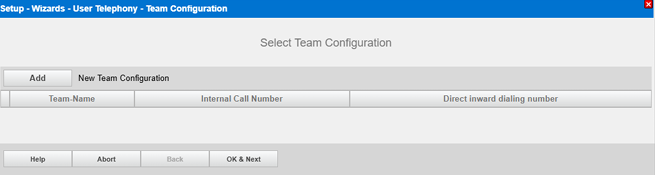
Click [Add].
Select the first telephone (IP or TDM Desk Phone).
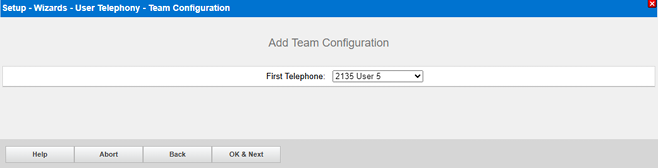
Click [OK & Next].
Add the Unify Phone mobility User as the second telephone
• add the internal call number
• add the DID
• configure the names
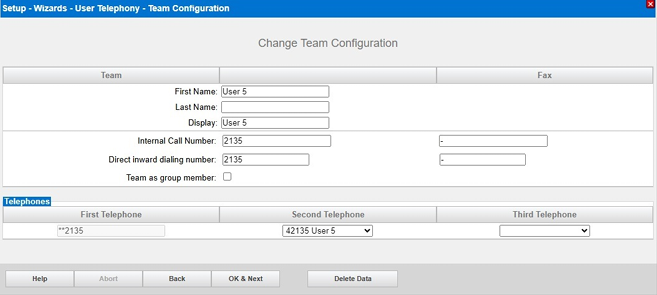
Click [OK & Next].
3.6 Licenses
Unify Phone requires the following OpenScape Business licenses:
• Valid OpenScape Business Software Support
• OpenScape Business IP User (Mobility User) licenses
• OpenScape Business Unify Phone licenses
• Twinning with Desk Phone: IP User license for Desk Phone (optional)
• OpenScape Business Voicemail licenses (optional)
• OpenScape Business UC User licenses (optional)
Go to License Management – Local User licenses – Mobility User
Actions – standalone User example:
• activate needed IP User (Mobility User) licenses
• activate needed Unify Phone licenses
• Twinning with Desk Phone: IP User license for Desk Phone (optional)
• activate needed Voicemail licenses (optional)
• activate needed UC User licenses (optional)
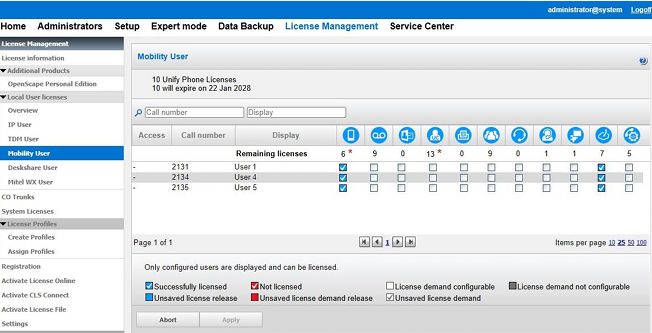
Click [Apply].
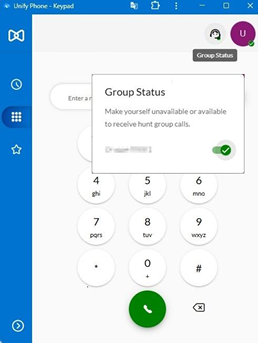
3.7.7 Group status
Starting with OpenScape Business V3R4 FR3 user can make himself unavailable or available to receive hunt group calls via the Group Status option. This option appears automatically after group configuration in OpenScape Business.
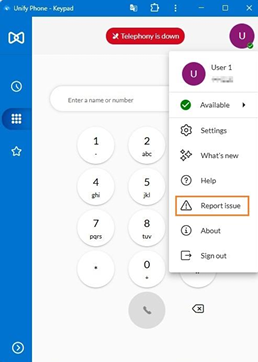
5.2 Unify Phone log file
Client logs can be collected via the Report issue menu:
References with links
Administration Documentation Online Help in OpenScape Business Assistant
[2] Diagnostic hints Administration Documentation
[3] Experts Wiki http://wiki.unify.com/wiki/OpenScape_Business
[4] OpenScape Business Security Checklist - https://www.mitel.com/document-center/business-phone systems/openscape-business/openscape-business administration/30/en/openscape-business-v3-security-checklist
[5] Unify Phone Administration https://www.mitel.com/document center/applications/collaboration/unify-phone/unify-phone administration/all-releases/en/unify-phone-v3-administrator documentation
[6] Configuration of LAN/WAN interface for VoIP https://wiki.unify.com/images/8/8c/How_To_Configure_LAN_W AN_Interface_for_VoIP.pdf